Document with screenshots
Document a process with screenshots, without the copy-paste slog.
The usual way is brutal: do the task, then do it again in slow motion, screenshotting, cropping, and pasting each step into a document. Notavi collapses that into one pass. Run through the work once, press a shortcut at each step, and you end up with a clean, illustrated guide.
Capture as you work
Press your capture shortcut at each step, full screen, a window, or a selection. Notavi takes the screenshot and starts the guide automatically. It only grabs what you choose, nothing in the background.
Let it write itself up
Submit the session and the optional AI writeup titles every step and writes the instruction for you. Rather do it yourself? Type the steps by hand for free. Either way, everything is editable in place.
Mark up, then export
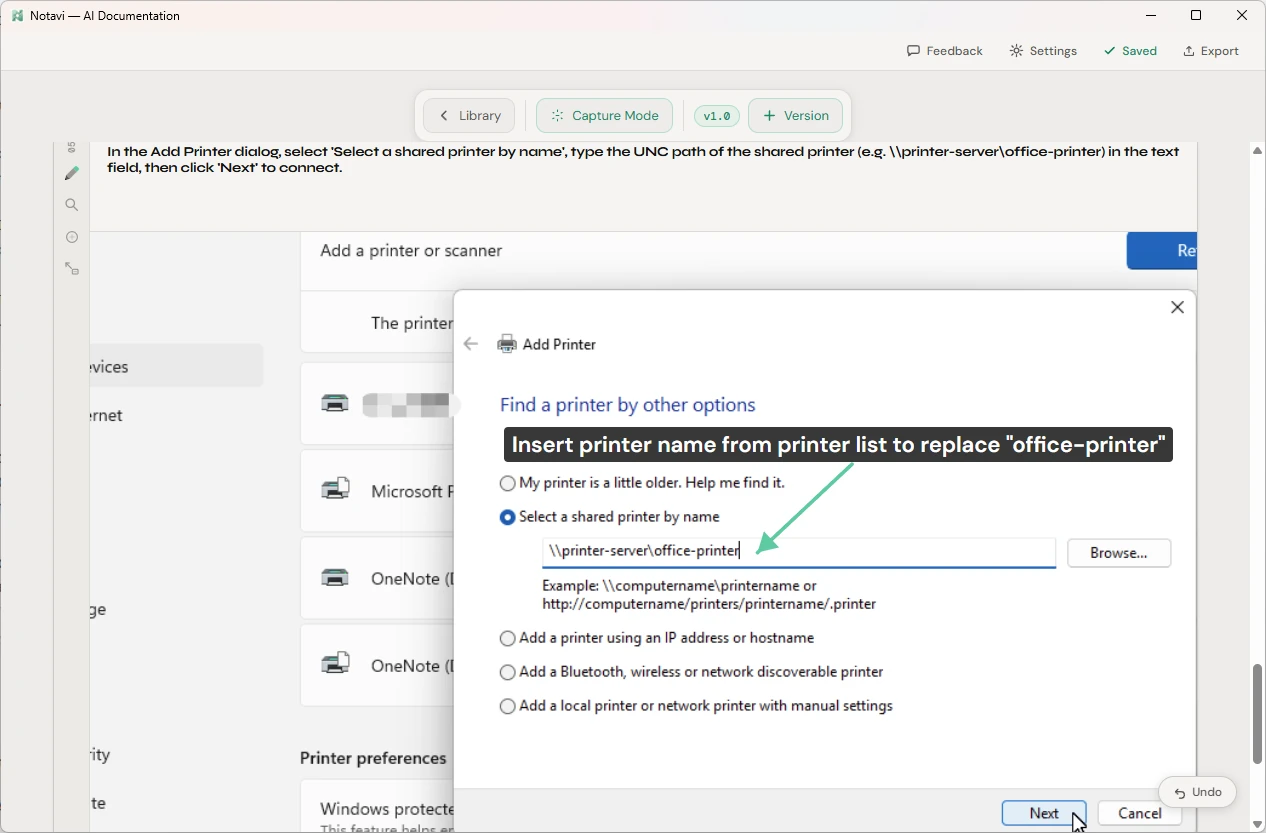
Zoom, crop, blur anything sensitive, and add arrows or labels. Then export to PDF, Word, or a web page, in the layout you need, ready to hand off.
Screenshots that explain themselves
A screenshot is only useful if it points at the right thing.
Every captured step can be framed to show exactly what matters, with an arrow on the button you clicked and a blur over anything that shouldn’t be seen. The blur is baked into the image permanently, so a redacted screenshot stays redacted, even after export.
Your library of finished guides lives in storage you already own, and when you ask for the AI writeup, only that session’s captured steps are processed on US-based infrastructure and are never used to train AI.
Common questions
How it works, answered.
How do I document a process with screenshots automatically?
Run through the task once and press your capture shortcut at each step. Notavi grabs the screenshot and, if you want, writes the step up for you, so you finish with a numbered, illustrated guide instead of a blank page.
Does it capture everything on my screen?
No. Notavi records a step only when you press the shortcut. There is no keylogging, no capturing on every click, and nothing running in the background.
Can I edit or redact the screenshots?
Yes. Zoom and crop to frame exactly what matters, blur sensitive details permanently right on the image, and add arrows and labels. The original capture is always kept intact.
What can I export the finished guide to?
PDF, Word, or a self-contained web page, in layouts like two-column and quadrant. With a subscription, you can also export into any of eleven languages. Every export includes all the screenshots and keeps its formatting.
Do I need to pay?
No. Capturing and building a guide by hand is free, with no subscription. The optional AI writeup is a paid add-on at $10 or $20 a month.
Turn the task you just did into a guide.
Build your own library for free, in storage you own. Add the AI writeup whenever you’re ready.
Free to build your own library · Apple Silicon Mac (M1+) · Windows 10/11