Capture
You do the task; Notavi grabs the steps.
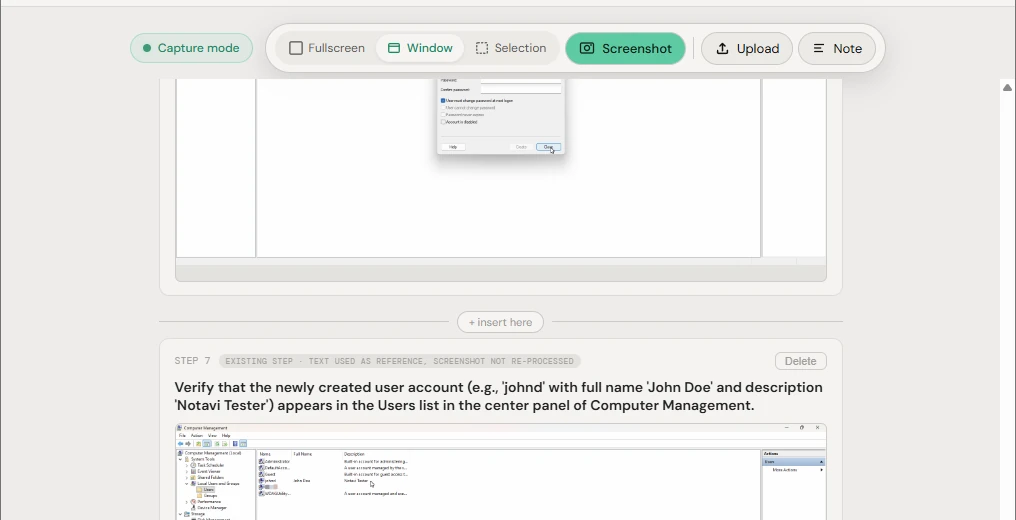
A session is one continuous chunk of work that becomes one step-by-step guide (SOP). Work through the thing you're documenting and grab each step as you go — nothing is recorded unless you ask for it.
Captures only when you ask.
No keylogging, no capturing on every click. Notavi grabs a step only when you press a capture shortcut — and you get two, both of which you can set yourself (defaults Ctrl + D and Ctrl + L). The first press begins a session automatically.
The mouse-on-the-step technique
Press the capture shortcut while your cursor is over the thing you're describing — the button you just clicked, the field you just filled. That cursor position is the cue Notavi uses to know what's active in the step.
Three capture modes
- FullscreenThe whole display — best when context across windows is the point.
- WindowJust the focused window — Notavi crops out the desktop and dock.
- SelectionDrag a region — best when one panel or dialog is all that matters.
In the editor, every screenshot can be zoomed and panned to frame exactly what matters — reset the crop any time; the original capture is always intact. The capture shortcuts fire in Screenshot mode; switch back to it if a capture isn't landing.
Write it up
By hand, or let AI do it.
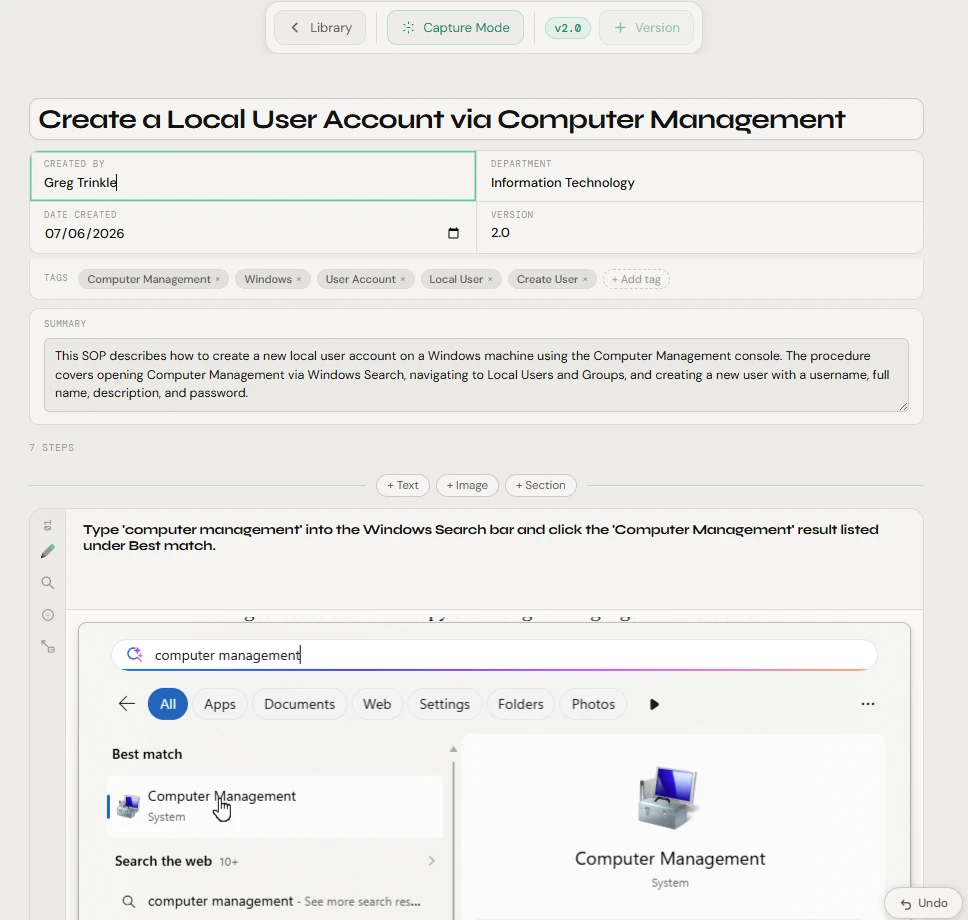
Documenting is free: build a guide entirely by hand — add steps, text, and sections, and arrange them however you like. Or submit the session for the optional AI writeup, and Notavi returns a titled step for every screenshot with an instruction paragraph, plus a document title for the whole SOP. Either way, everything is editable in place.
- Edit anythingClick a title or instruction to rewrite it; commit with click-out or Esc.
- Reorder stepsMove a step with its up/down arrows — the numbering reflows automatically.
- Insert contentUse + Text, + Image and + Section to add callouts, extra shots, or chapter headings.
- AI is optionalThe AI writeup is a paid convenience — never required to document.
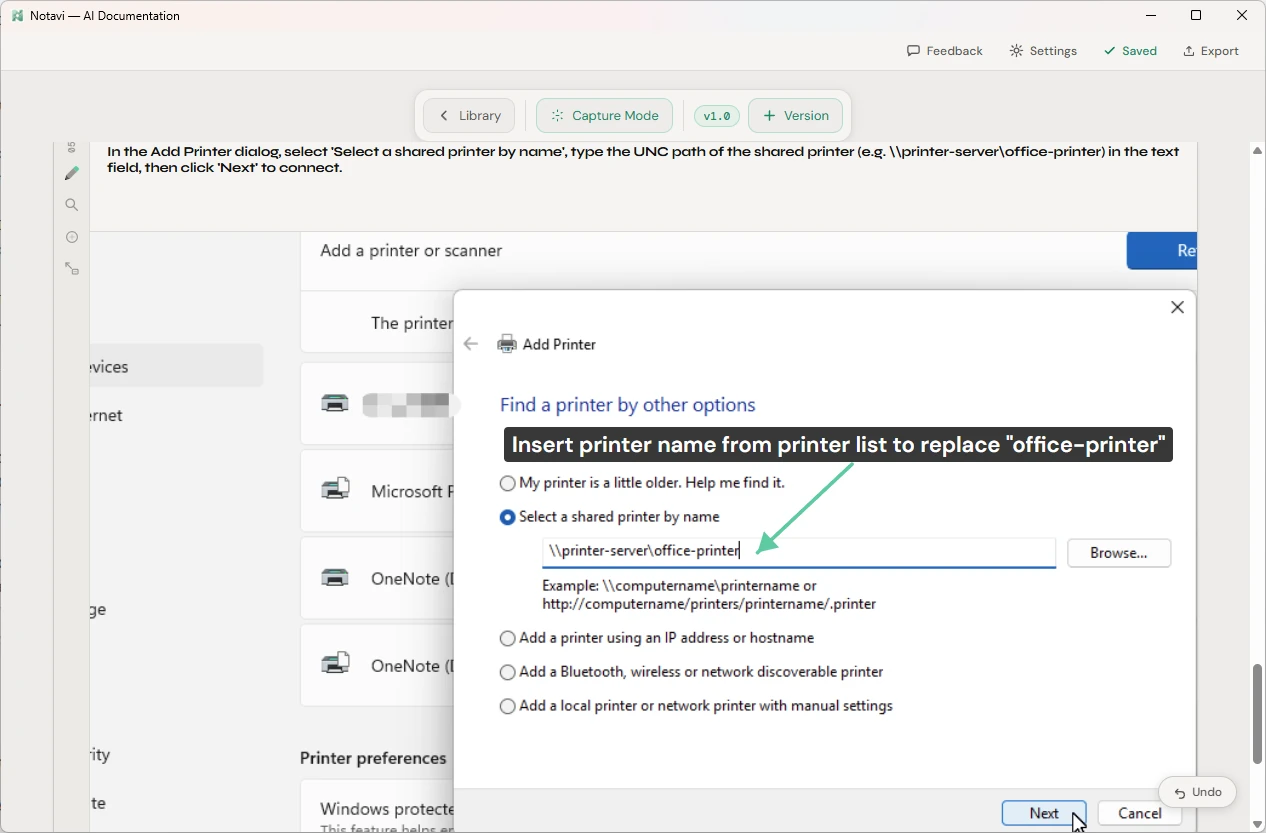
Markup tools on every screenshot
Blur permanently redacts anything sensitive — names, IDs, internal links. Do it before submitting if it shouldn't reach the AI either. Arrow points at the thing that matters (one or two per step). Text box drops a label right on the image.
Version history
Documentation with a memory.
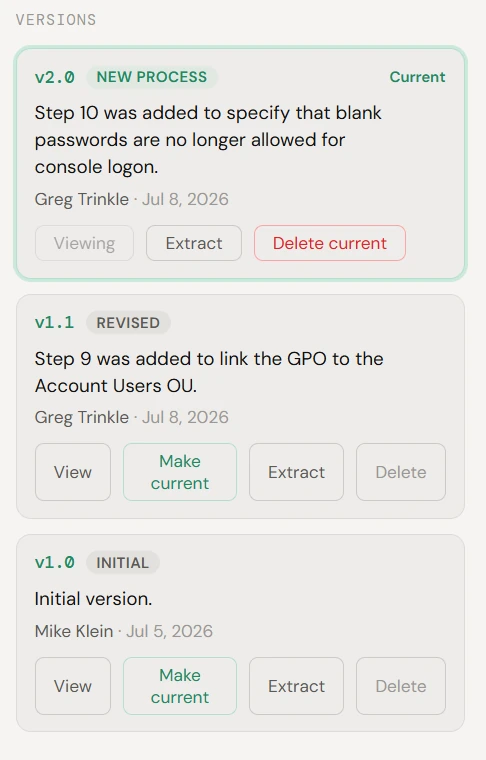
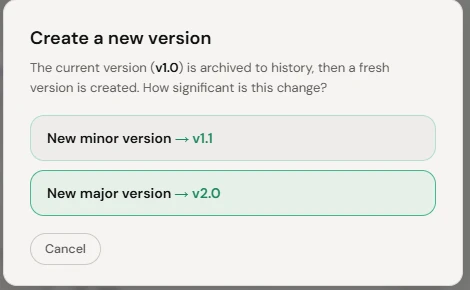
Real procedures change. When you make a new version, the current one is archived to history and a fresh version is created — and every revision carries a plain-language note on what changed, so a guide is always current, never quietly out of date.
- Minor or majorA small fix bumps a minor version; a rewrite bumps a major one. The whole lineage stays intact.
- Automatic changelogNotavi writes the "what changed, when, and who" note for each version in plain sentences.
- Restore any versionReopen an earlier version to read it, or make it current again without losing the newer ones.
- Branch itStart a new version from the existing guide, or from a blank one under the same lineage.
Duplicates & search
One source of truth.
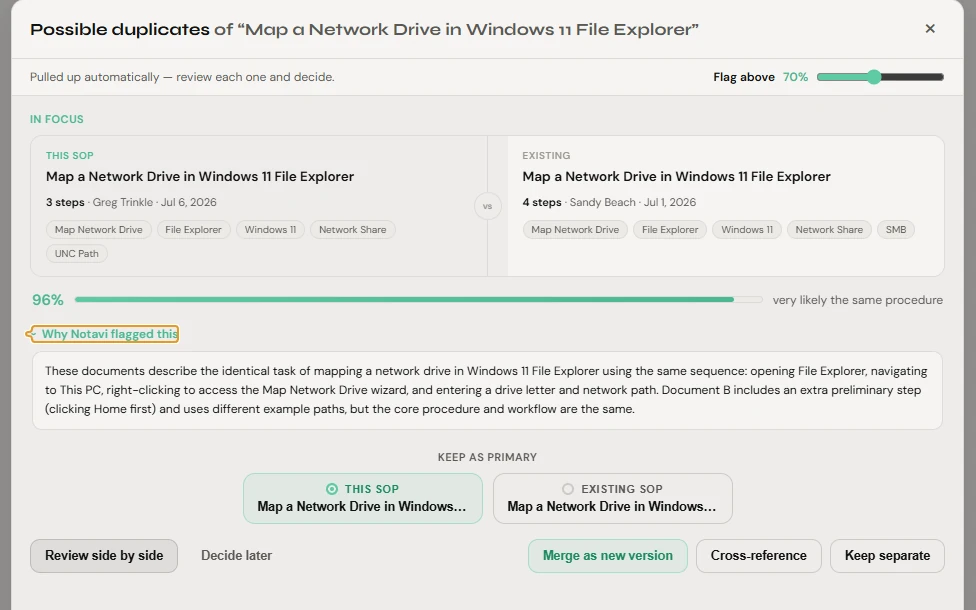
When a new guide looks like one you already have, Notavi flags it right in the editor and scores how alike they are. Review the pair side by side — down to which steps match, differ, or appear in only one — then decide.
- Merge as a new versionFold the two into one authoritative guide, kept in the version history.
- Cross-referenceLink related guides instead of merging, so both keep their own place.
- Keep separateDecide they really are different — Notavi remembers your call. Nothing changes until you choose.
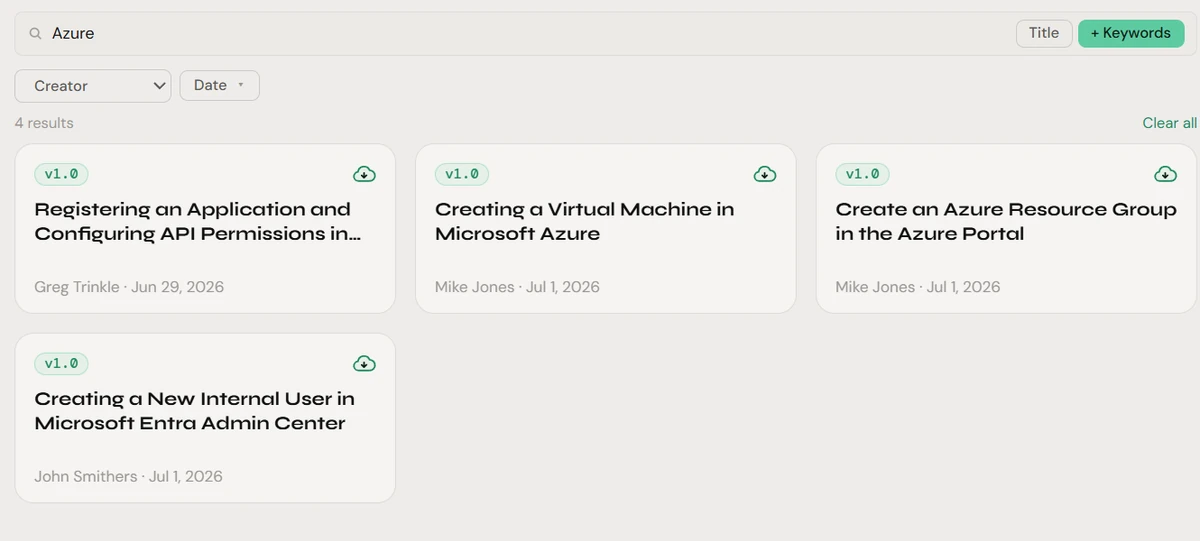
- Search everythingFind any guide by title or keyword across every folder in seconds.
Your library
Every procedure in one place.
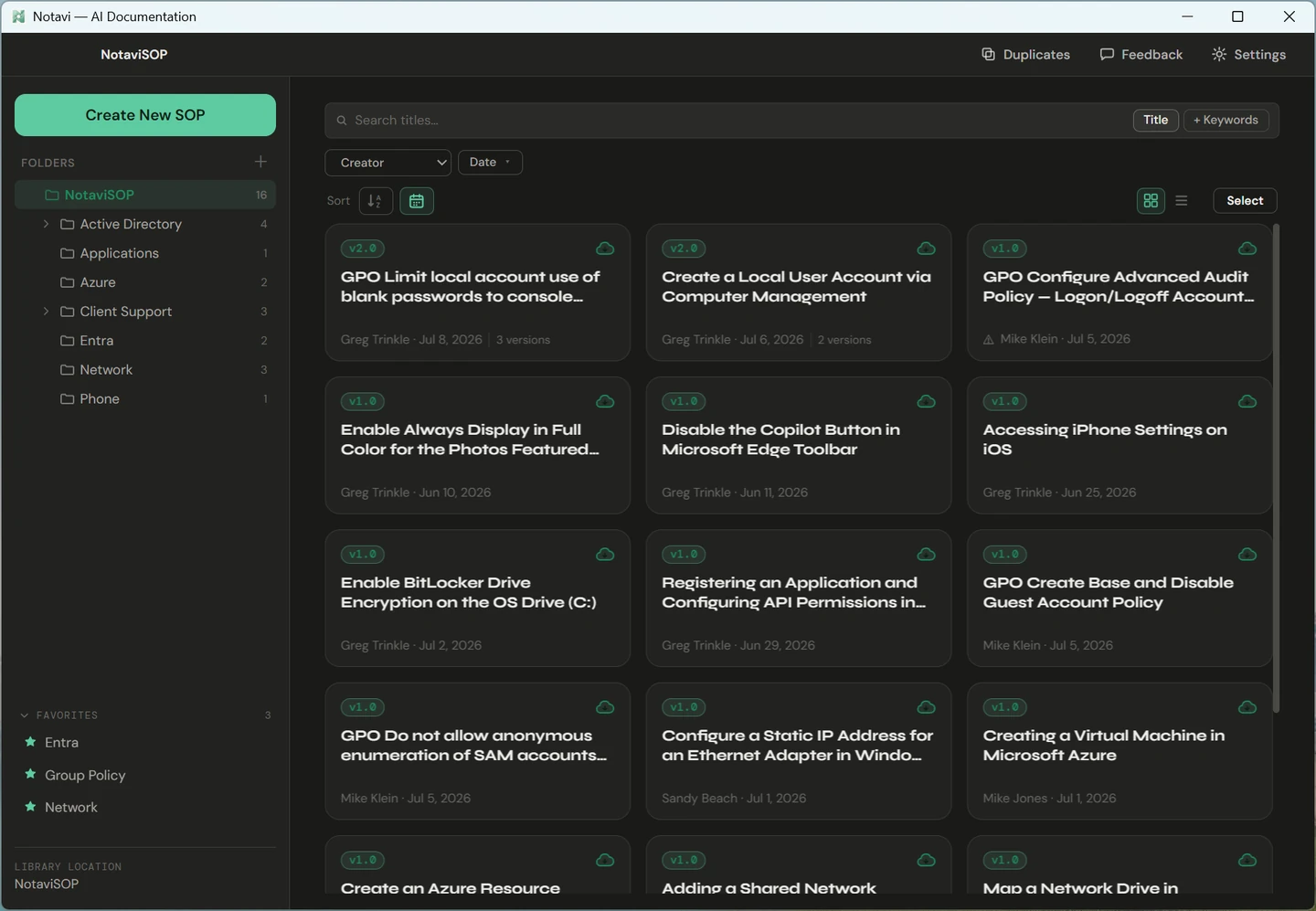
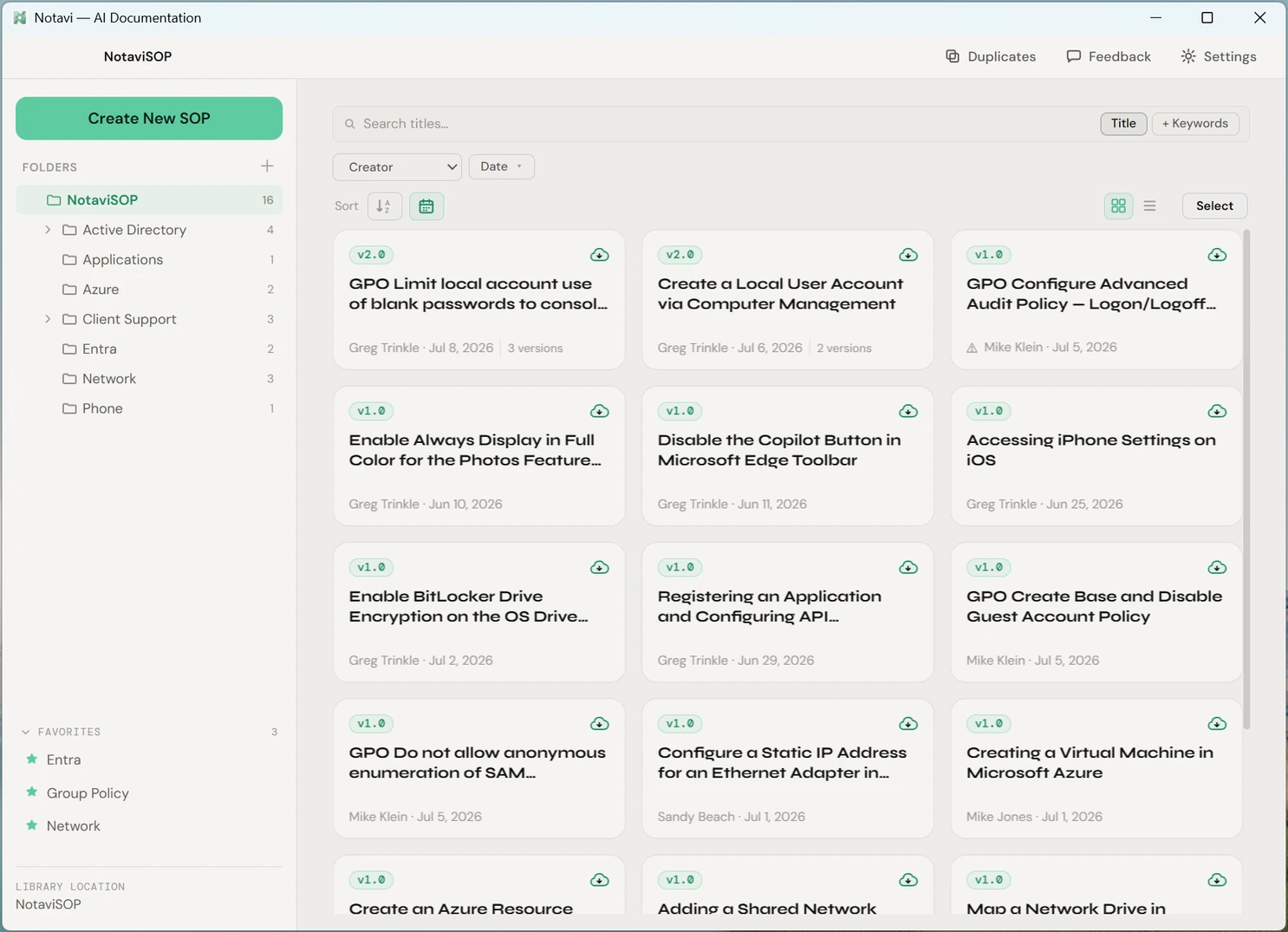
All your SOPs live in one library. Group them into folders, pin the ones you reach for most, and move a guide between folders whenever you reorganize — each card shows its current version at a glance.
Export & languages
Ship it in any layout — or any language.
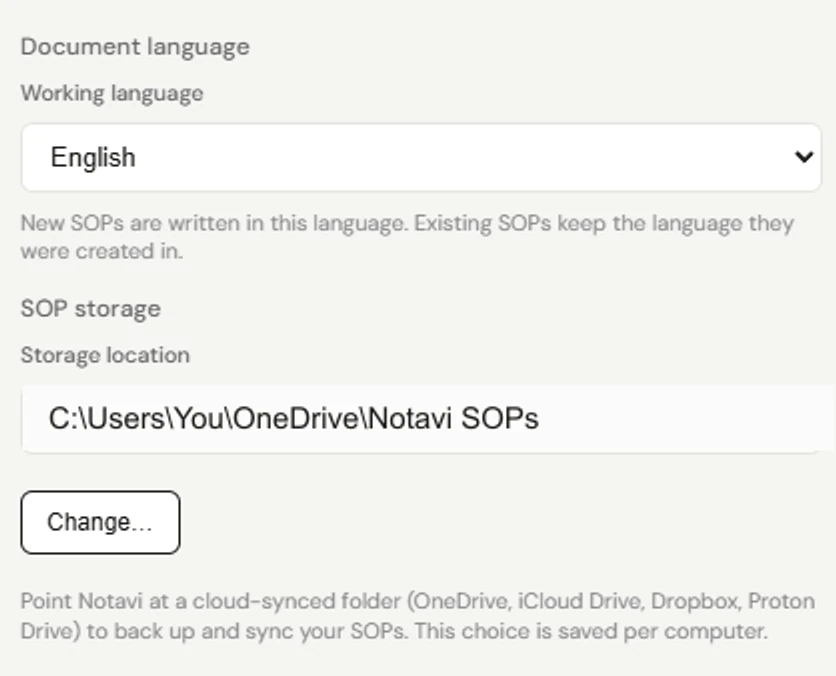
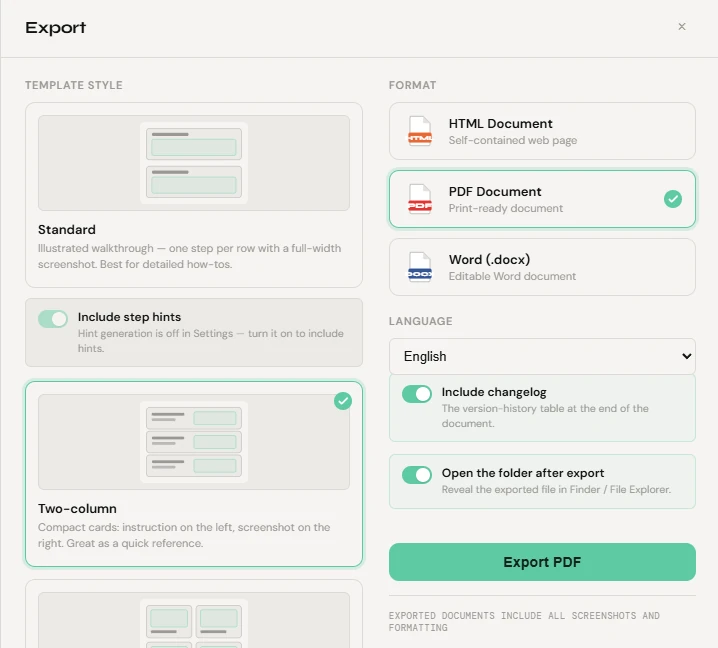
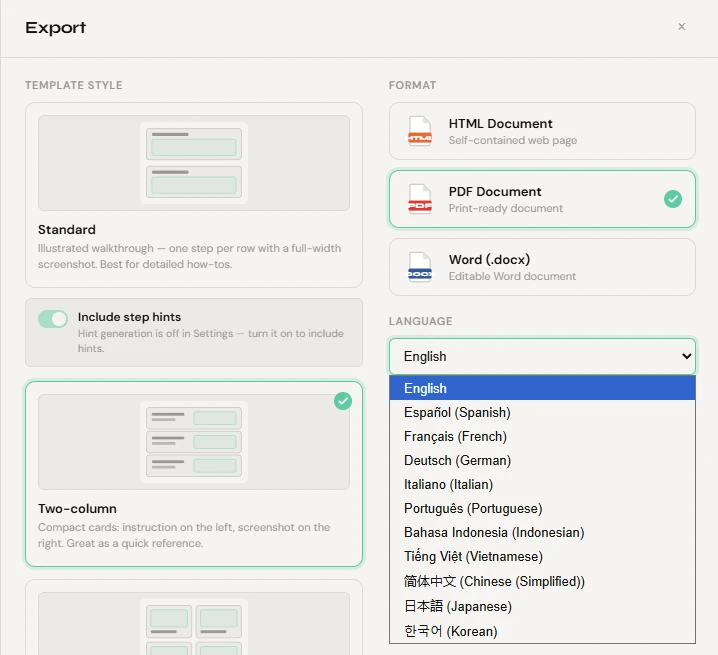
Open the export panel, choose a template and format, and Notavi turns your SOP into a real file. Optionally translate it on the way out — the words are translated while your screenshots stay exactly as captured.
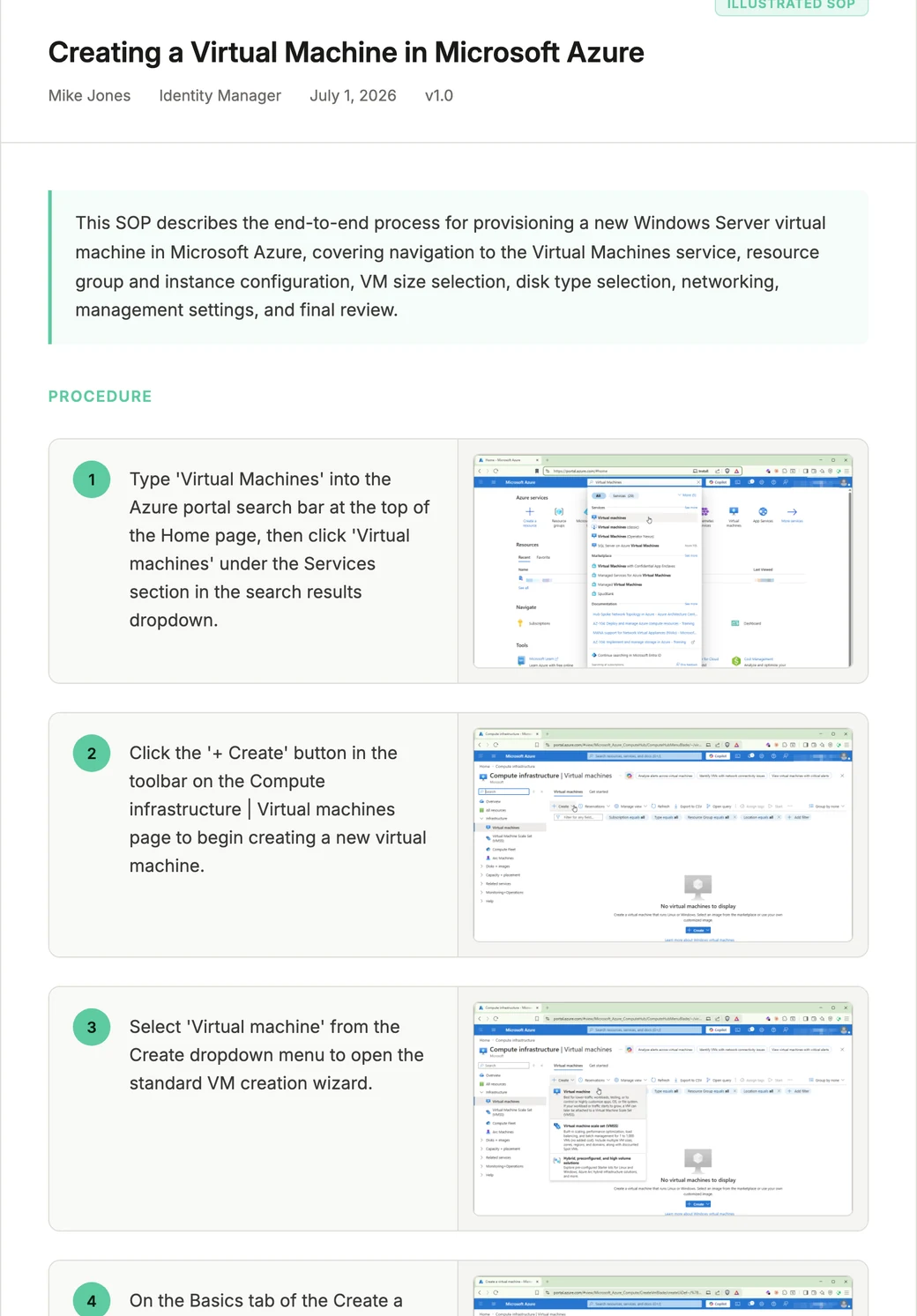
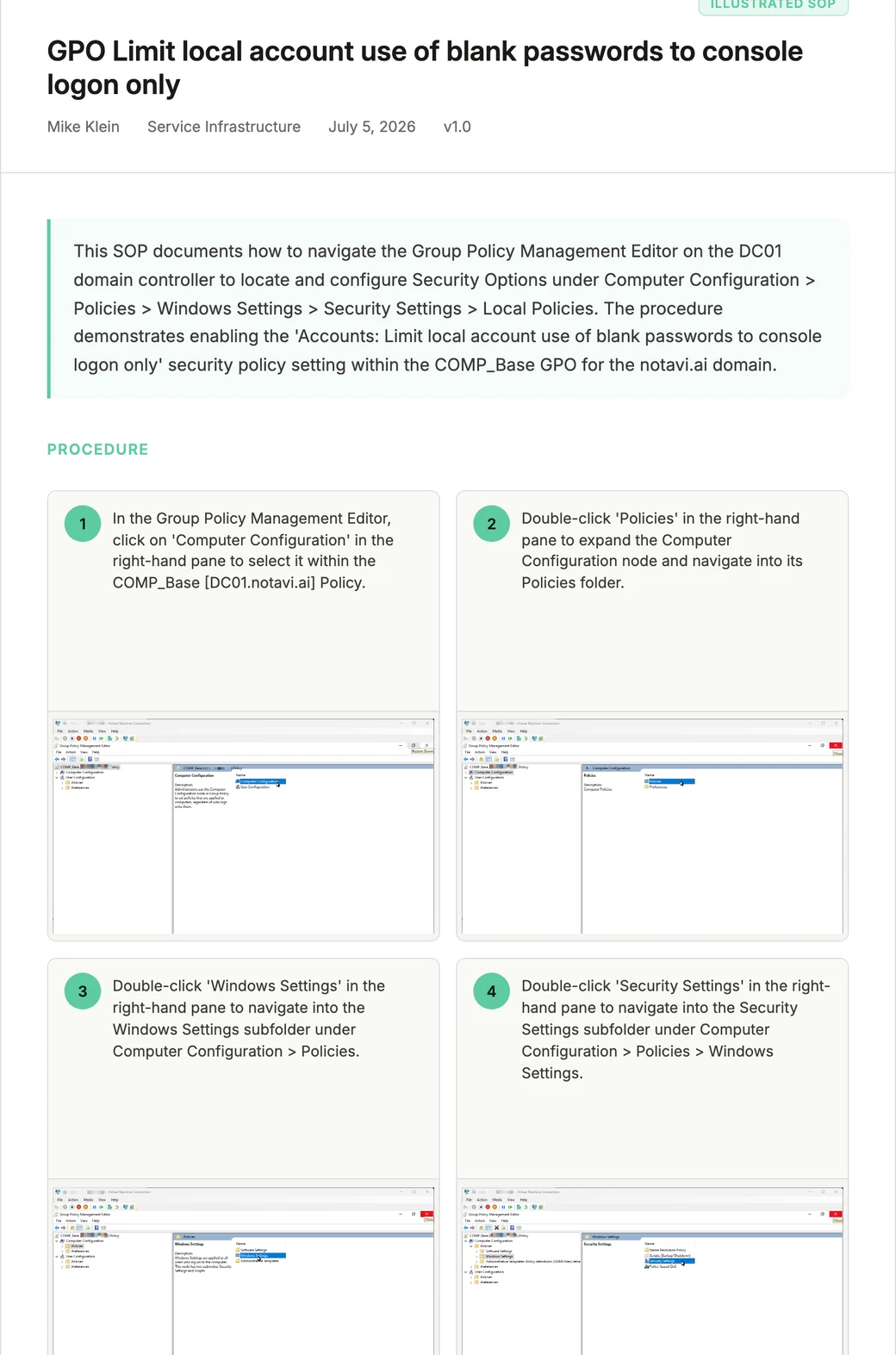
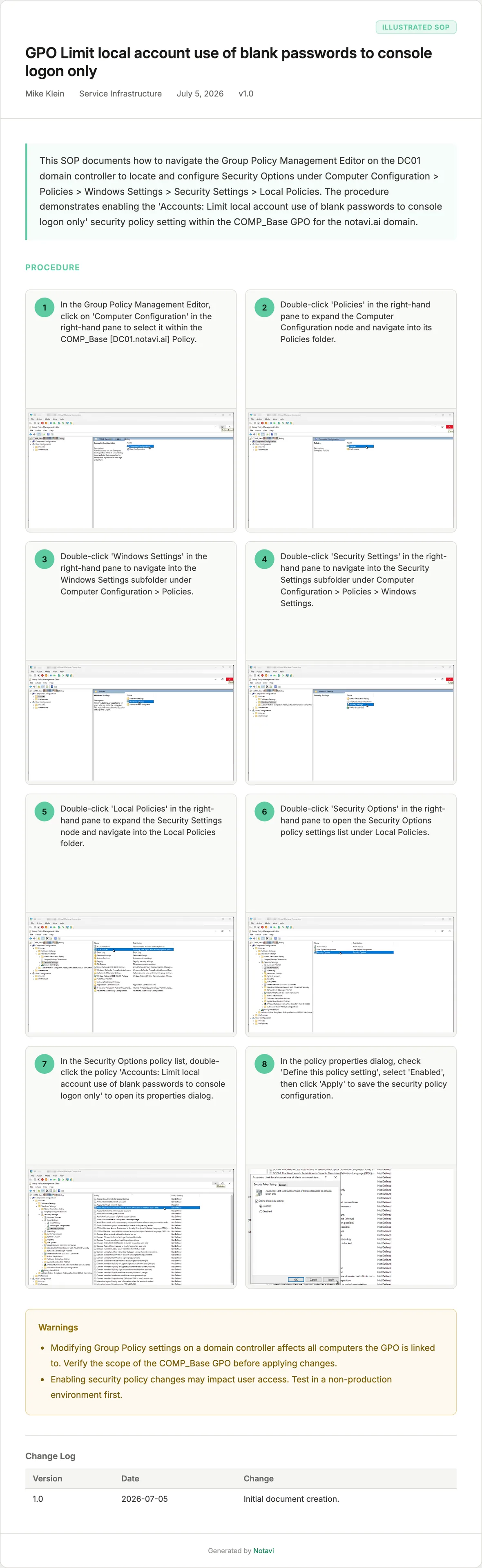
- Template styleStandard (one step per row), Two-column (instruction + shot), or Quadrant (2×2 grid).
- FormatHTML (self-contained), PDF (print-ready), or Word (.docx, editable).
- OptionsInclude the changelog table, add step hints, and open the folder after export.
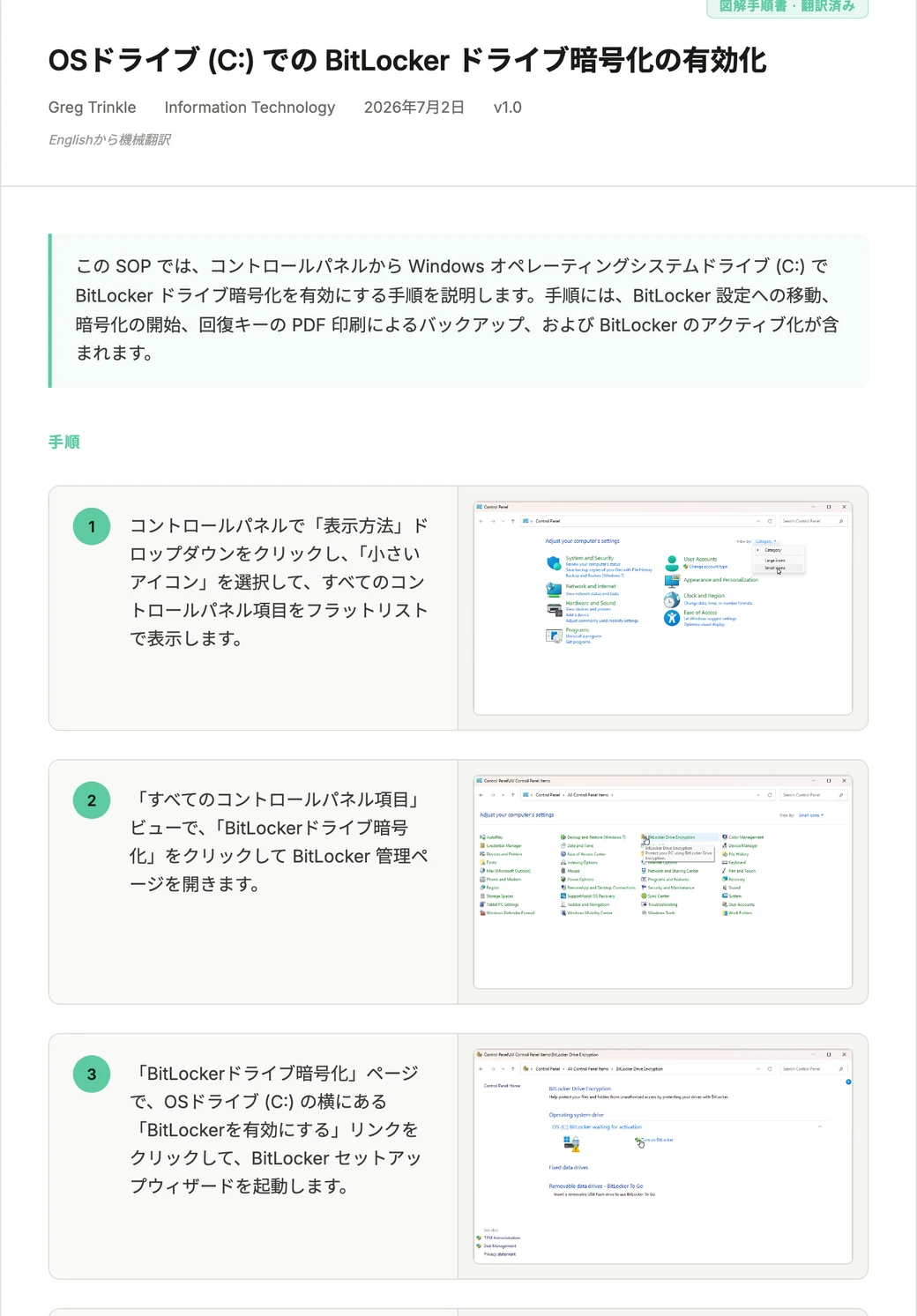
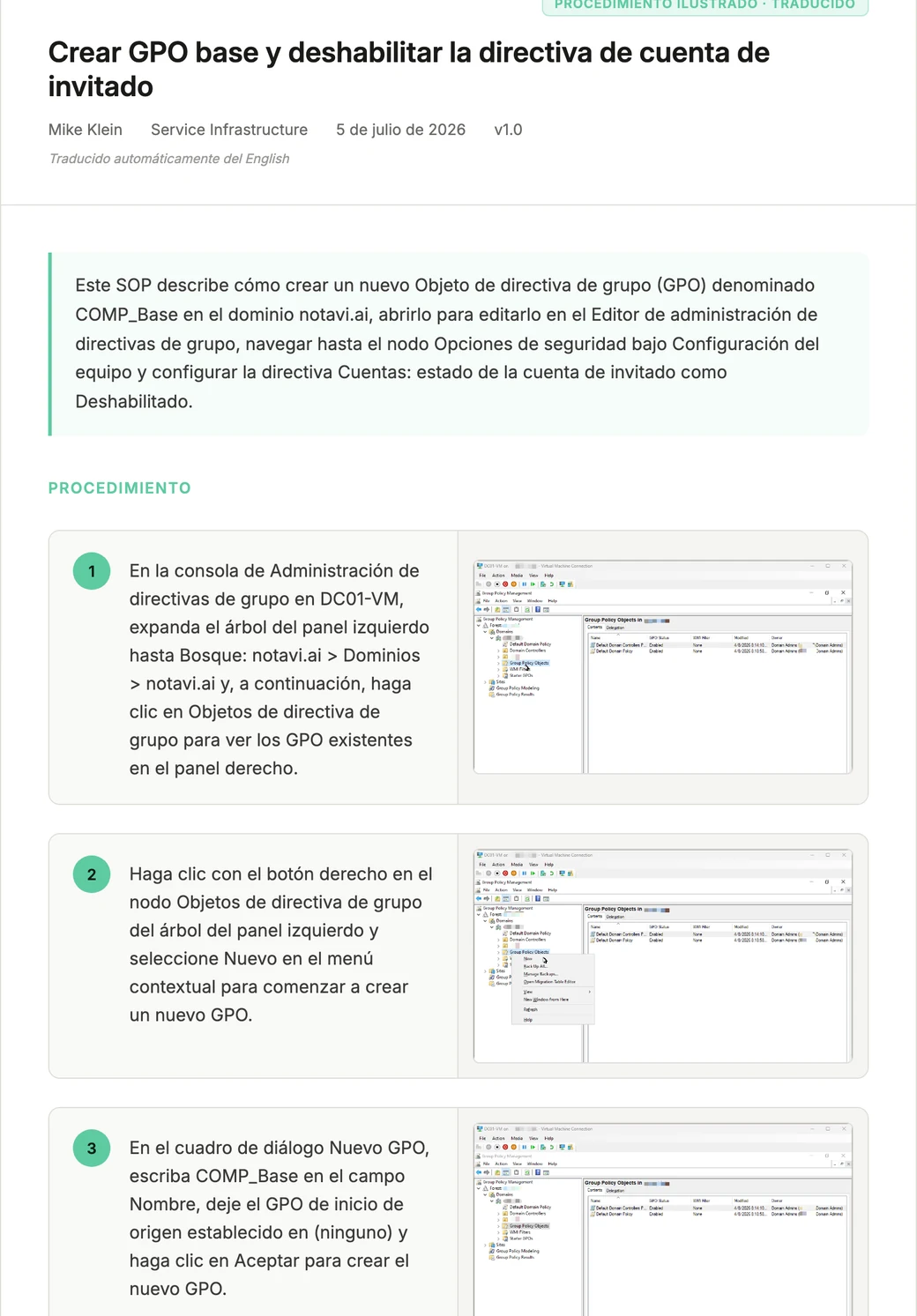
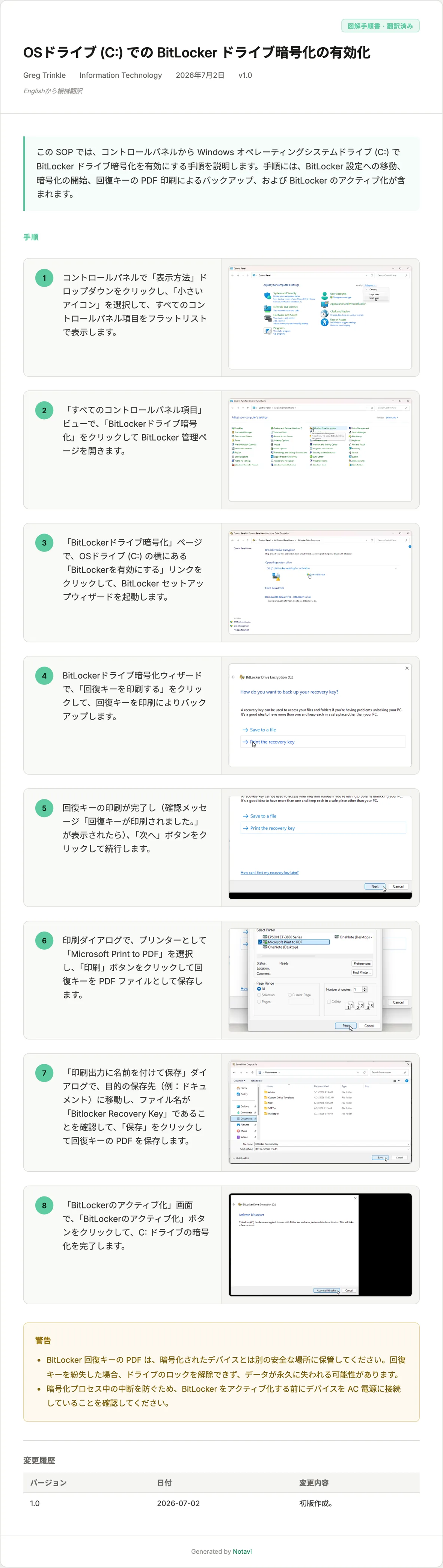
- 11 languagesPick a language and the exported file comes out translated; a "machine-translated" note travels with it.
See real exports of the same kind of SOP — two layouts and two languages. Open one and read the whole thing: