
Version history
Documentation that stays current.
The reason SOPs fail isn’t that nobody writes them — it’s that the moment a process changes, the document becomes a lie. Notavi gives every guide a memory: each revision is kept with a plain-language note on what changed, so your documentation is always the current version, never quietly out of date.
Make a version
A minor tweak or a full rewrite — versioned either way.
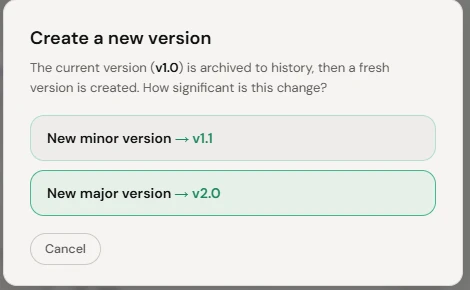
When a procedure changes, make a new version instead of overwriting the old one. The current guide is archived to history and a fresh version takes its place — with the whole lineage kept intact, so nothing is ever lost.
- Minor versionA small fix — a corrected step, an updated screenshot — bumps a minor version (v1.0 → v1.1).
- Major versionA substantial rewrite bumps a major version (v1.1 → v2.0), signalling a real change in the process.
- Nothing overwrittenThe previous version is archived, not replaced — every earlier revision stays readable.
Automatic changelog
The changelog writes itself, in plain English.
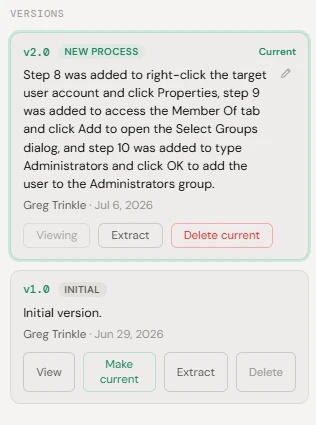
You don’t keep the history — Notavi does. Each version carries an automatically written note describing what actually changed, in ordinary sentences rather than a technical diff, alongside who made the change and when. Anyone opening the guide can see how it got here.
- What changed, in sentences“Step 8 was added to right-click the target account and click Properties” — not a wall of code.
- Who and whenEvery entry is stamped with the author and date, so the history is accountable, not anonymous.
- No extra step for youThe note is generated when you make the version — there’s no changelog to maintain by hand.
Restore & make current
Go back a version without losing your place.
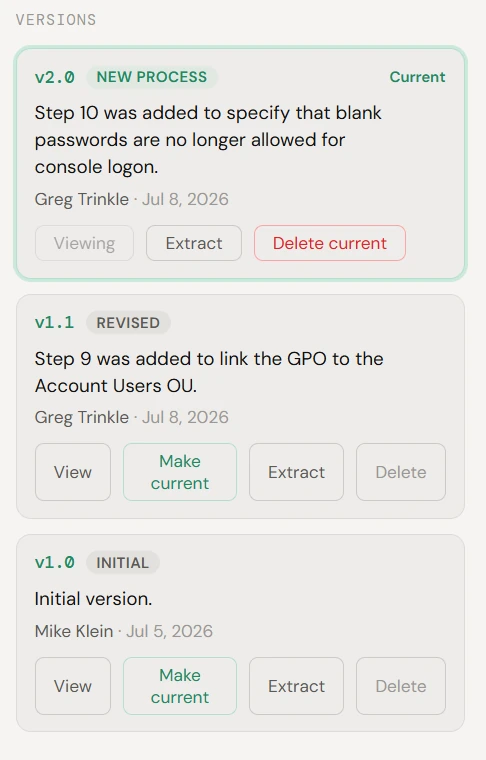
The whole lineage is one click away. Reopen an earlier version just to read it, or promote it back to current when a change turns out to be wrong — the newer versions stay in history either way, so you can always move forward again.
- View any versionOpen an older revision read-only to check exactly how the procedure used to work.
- Make it currentRoll back to a known-good version in one click; nothing newer is deleted.
- Extract a versionPull any version out as its own standalone guide when a branch deserves its own life.
Why it matters
A document that can’t stay current is worse than no document.
Once a guide has been wrong once, people stop trusting all of them — and quietly go back to interrupting the one person who knows. A living version history is what keeps your documentation believable: the guide in front of a new hire is the real one, and its whole past is right there to prove it.
Branch it
Fork a new version from what you already have.
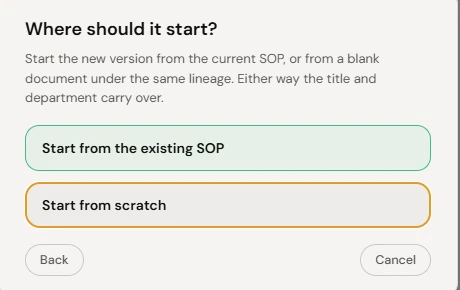
When you make a new version, you decide where it starts. Carry the existing SOP forward and edit from there, or begin from a blank document under the same lineage — either way the title and department carry over, so the new version is unmistakably part of the same story.
- Start from the existing SOPKeep the steps you have and revise — best for an incremental update to a working procedure.
- Start from scratchBegin clean under the same lineage — best when the process has genuinely been re-done.
One source of truth
Two guides drifting together? Merge them into one.
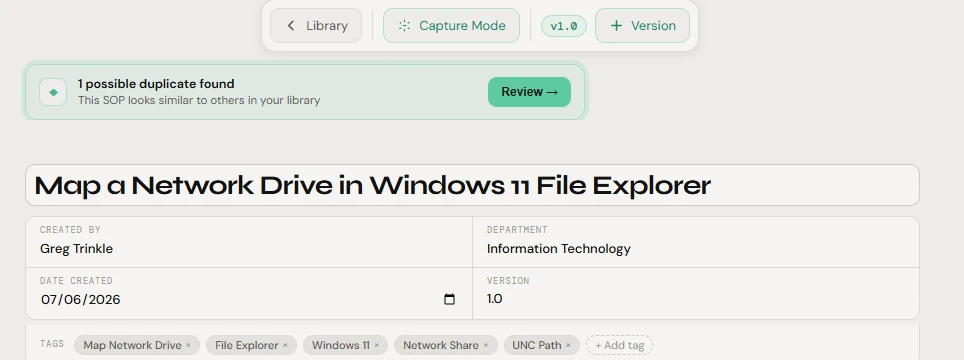
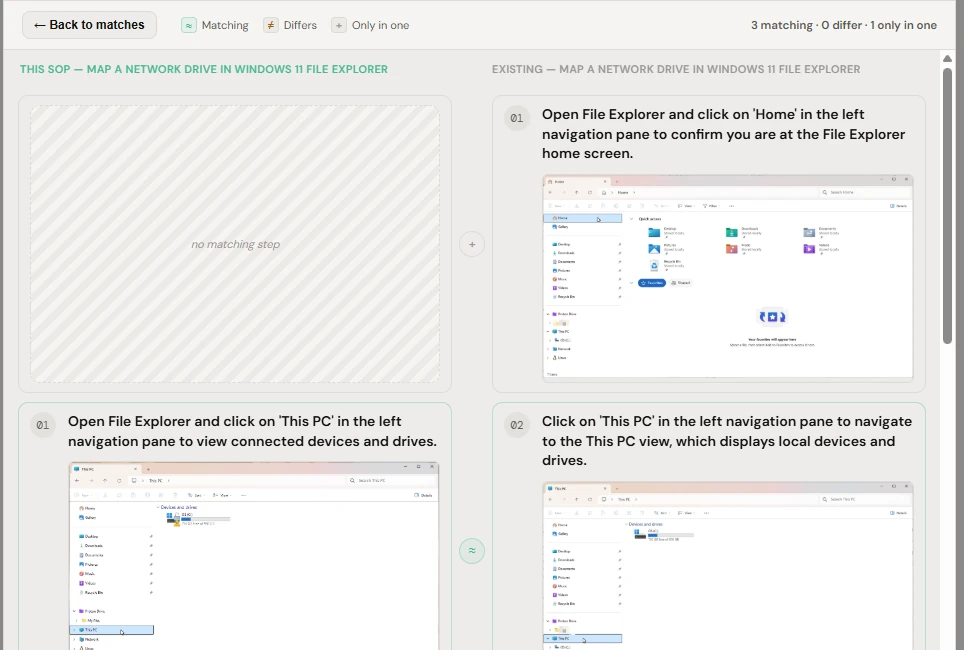
Version history isn’t only forward. When a new guide starts to overlap one you already have, Notavi flags it right in the editor and lets you compare them step by step — which steps match, which differ, and which appear in only one — before you decide what to do.
- Merge as a new versionFold two overlapping guides into one authoritative SOP, kept in the version history like any other change.
- Cross-referenceLink related guides instead of merging, so each keeps its own place while pointing at the other.
- Keep separateDecide they really are different and Notavi remembers your call — nothing changes until you choose.
At a glance
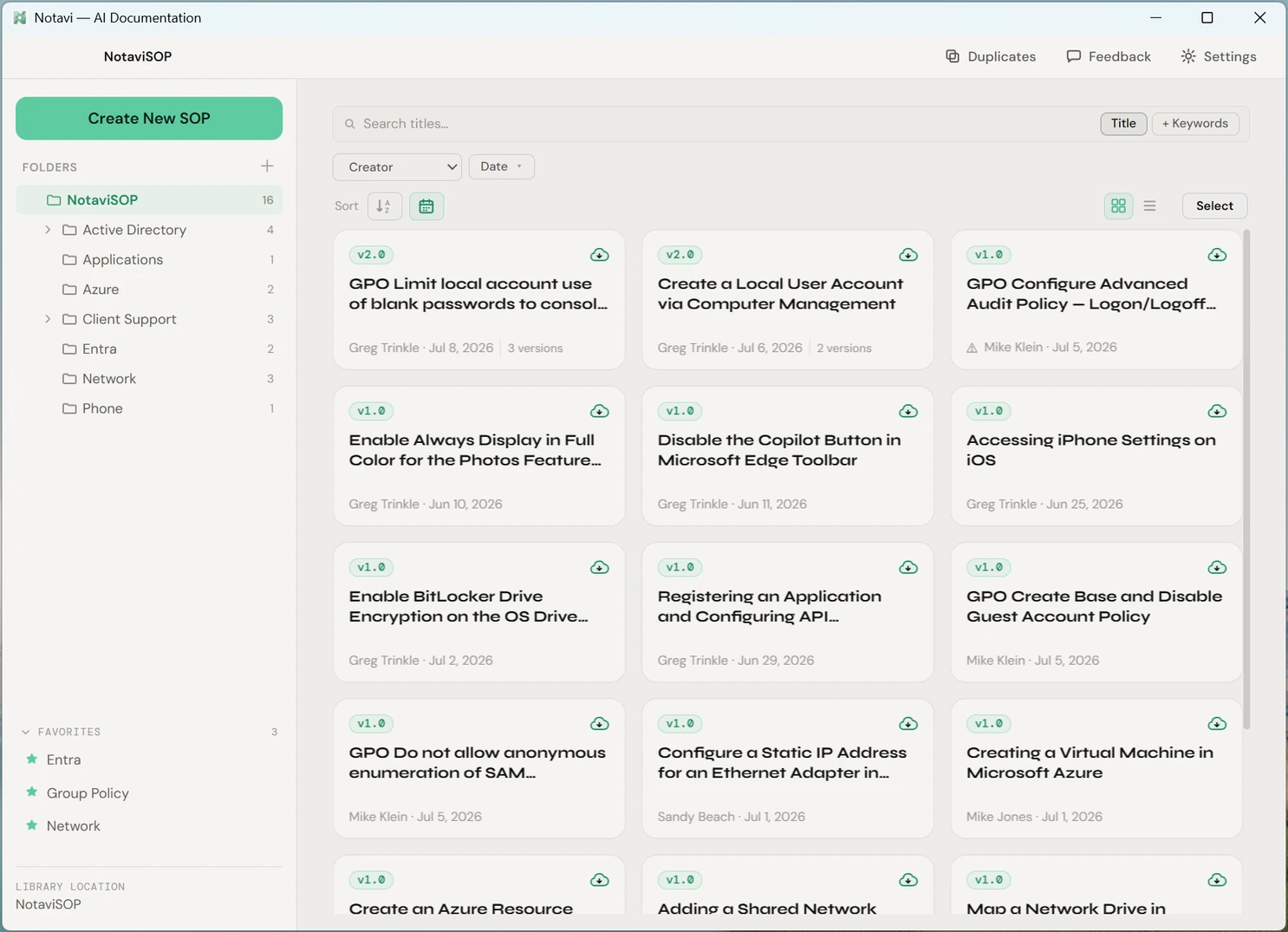
Every card shows its current version.
Across the whole library, each guide wears its version like a badge — so you can tell at a glance which procedures have moved on and which are still on v1.0, without opening a single one.
Give your procedures a memory.
Build and keep your own library for free, in storage you own. Turn on the AI writeup and automatic history whenever you’re ready.
Free to build your own library · Apple Silicon Mac (M1+) · Windows 10/11